
Creating an account for the CSS Support Portal
To access and manage support requests, you will need an account for the CSS Support Portal.
If you attempt to contact us via an email address that is not registered with the portal, you will receive an automated email explaining that, for security reasons, support requests can no longer be raised by email.
The email will include a link to the Support Portal, where you can create an account and submit your request.
Accessing the Support Portal
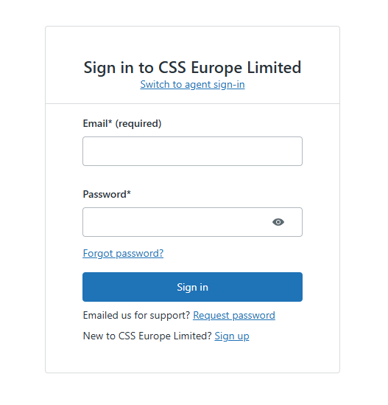
Go to www.csssupport.co.uk and you will see the following screen:
If you already have an account, enter your email address and password, then select Sign In.
If you do not yet have an account, select Sign Up to begin the registration process.
Creating Your Account
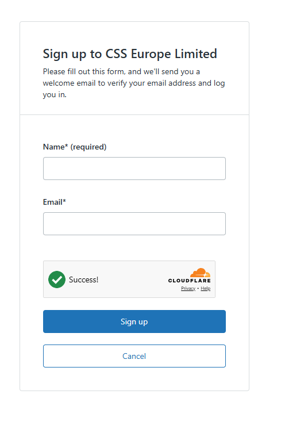
Complete the registration form by entering:
Your full name
Your email address
The reCAPTCHA verification
Once completed, select Sign Up.
A verification email will then be sent to the email address provided.
Verifying Your Email Address
After receiving the verification email, open it and select the verification link.
You will be directed to a page where you can create a password for your account.

Enter a password that meets the portal’s password requirements and select Set Password.
Once this has been completed, your account will be active and you will be able to log in to the CSS Support Portal to submit and manage support requests.
Raising a Support Request
To raise a support request, select Submit a request from the navigation bar or from the Submit a request option on the homepage.
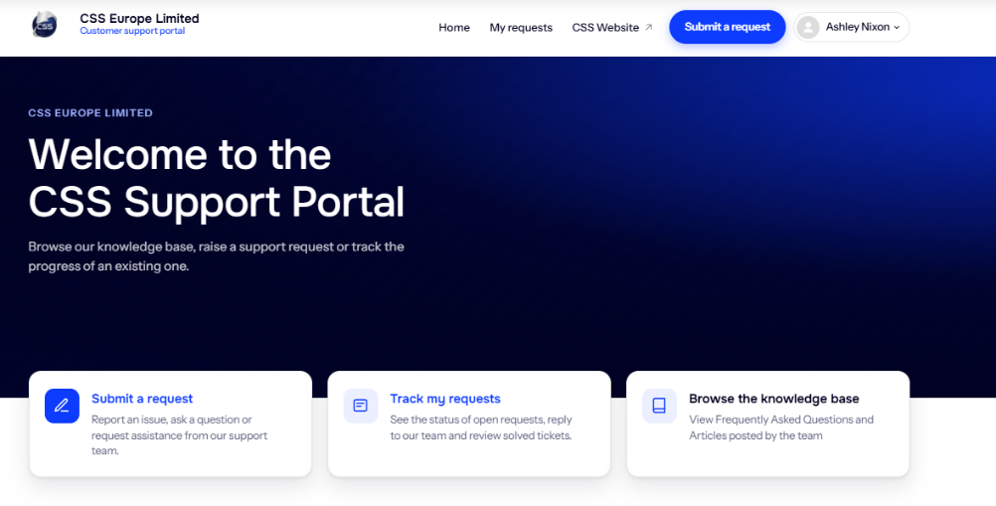
Once selected, you will be presented with the support request form.
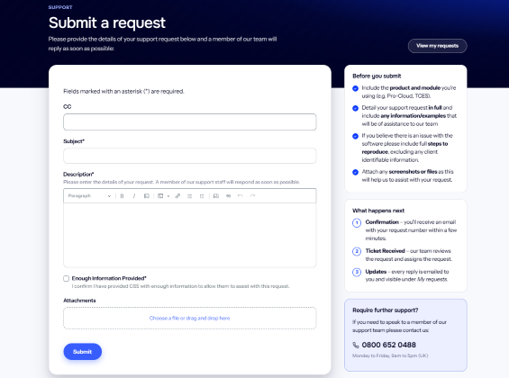
Before submitting your request, please review the guidance provided on the right-hand side of the page and ensure you complete all relevant fields. Where appropriate, include supporting information such as screenshots, error messages, user IDs, activity IDs or any other details that may help us investigate your query
Providing as much relevant information as possible helps our support team understand and investigate your request more efficiently.
Once you have completed the form, click Submit. Your request will be logged with our support team.
You can track the progress of your request and communicate with the support team through the Support Portal.
How to Track Your Requests
Once you have submitted a support request, you can monitor its progress through the CSS Support Portal.
To view your requests, log in to www.csssupport.co.uk and select My Requests from the navigation bar or Track My Requests from the homepage.
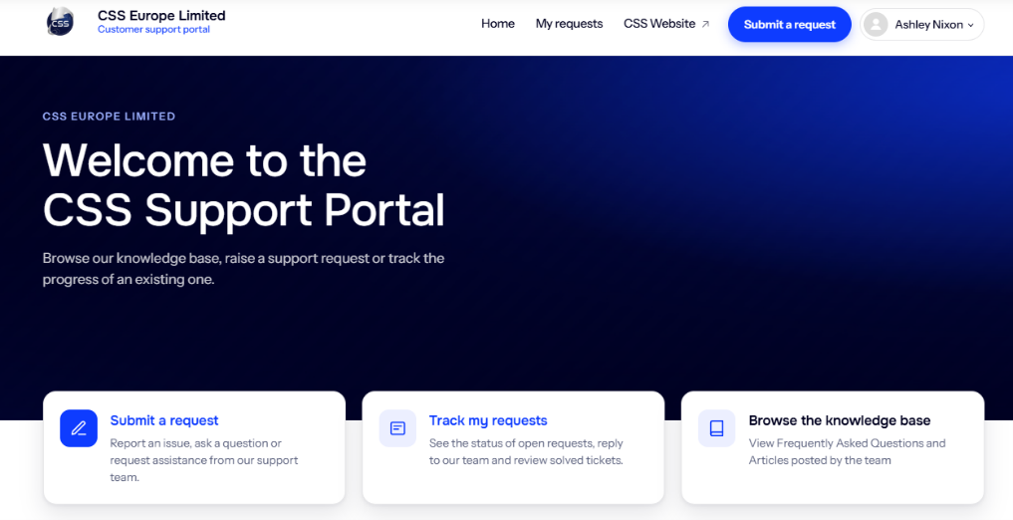
This page provides an overview of all support requests associated with your account, including their current status and the date they were last updated.
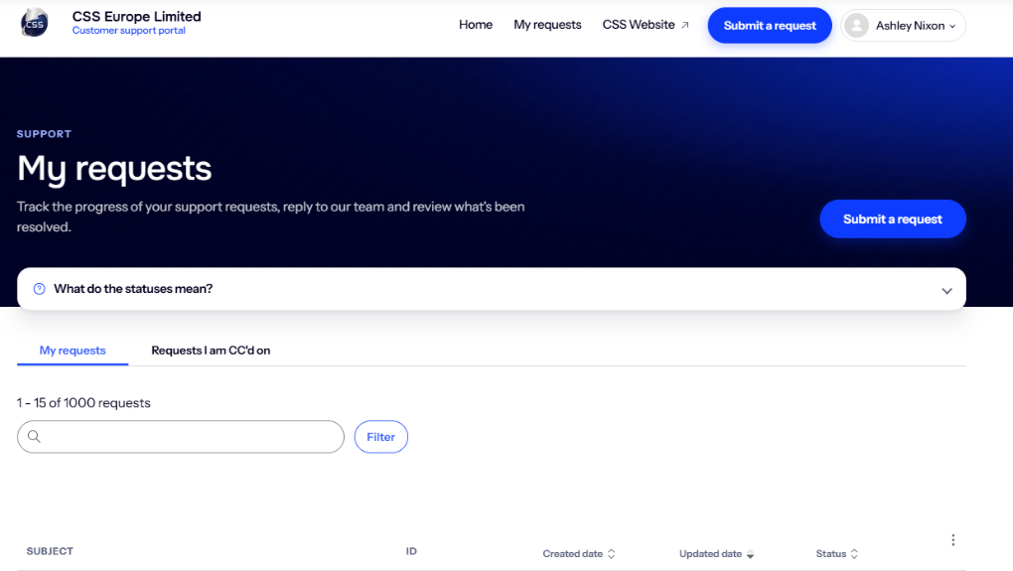
Selecting a request will open the full ticket history, allowing you to:
- Review updates from the CSS Support Team.
- Respond directly to requests for further information.
- Upload supporting attachments or screenshots.
- View the current status of the request.
- Access previous communications relating to the issue.
You can also type in a ticket number or search for a description and press enter.
We recommend checking your requests regularly, particularly if the support team has requested additional information. Prompt responses can help prevent delays and assist us in resolving your query as quickly as possible.
Once a request has been resolved, it will be marked as Solved. If you believe further investigation is required, simply reply to the ticket within 21 days and it will automatically be reopened for review.